
MPN (PDH) WIFI Gateway HUB, acting as an all-in-one wireless Relay, SMART Cloud-Logger, and Phone SMS/WhatsApp/Voice Alerter

The (PDH) gateway "HUB" can be set up as a Wi-Fi gateway using its Wi-Fi captive portal with a smartphone or a computer.
There is also a USB connector that can be connected to a PC using our free application to change its settings on whether it can receive messages from just some of our sensors in range or all available sensors, this can be usful if using it to trigger a nurscall point from some of the transmitting sensors and ignoring others or if only needing to be alerted to certain types of alerts, such as fall detections or message alerts from our sensors with low batterties that need to be serviced.
(Free PC HUB application for changing settings via USB) FP_Hub Programmer_gui-v2
Viewing, linking and managing HUBs connected to our Cloud-based Portal AIRLERT
Record logs of the messages from your HUB can be checked at the Airlert Portal using the link below:
https://airlert.co.uk/
For using the Remote alert messaging options with the HUB Gateway:
Non-smartphone devices, landlines, or telecare services can also be supported via AI voice calls or SMS text message delivery when the HUB receives paging messages from any of the sensors within range or predefined messages only. The Hub is also supported by popular instant messaging platforms on smartphones, such as WhatsApp.
WhatsApp runs on SMART Phones using Android or iPhone OS, and you can also use WhatsApp-Desktop on multiple operating systems or WhatsApp-Web on multiple web browsers, so our HUB can be used in a very versatile way, with the capability to be used simultaneously in multiple ways.
All settings related to message forwarding (i.e., adding mobiles and phone numbers) as well as logging can be controlled remotely by the user via our web portal at https://airlert.co.uk/ or by instructing a member of our customer support team.
Connecting WhatsApp to the HUB for Mobiles and Desktops
Where to Download Mobile Apps
- Android (Google Play Store): Download WhatsApp Messenger on Google Play.
-
iPhone (Apple App Store): Download WhatsApp Messenger on the App Store.
How to Set Up for Desktop
- Open WhatsApp on your mobile phone.
- Go to Settings (or the three dots in the corner) and select Linked Devices.
- Tap Link a Device and use your phone to scan the QR code displayed on your computer screen.
You can use WhatsApp Desktop as a standalone application for Windows or macOS, or you can send and receive messages directly in your browser using WhatsApp Web. Both versions allow you to view your chat history and receive real-time notifications on your computer.
Where to Access Them
-
WhatsApp Web: Access it instantly at web.whatsapp.com using any modern browser like Chrome, Safari, or Firefox.
https://web.whatsapp.com/
-
WhatsApp Desktop: Download the software for your computer from the official WhatsApp download page.
https://www.whatsapp.com/download
Our retired Base Station
(has now been replaced by our WIFI Gateway HUB, acting as an all-in-one wireless Relay, SMART Cloud-Logger, and Phone MSM/WhatsApp/Voice Alerter.)

Please follow the link below to download the software for your base station.

Click here if you are using an Android Device (new version released January 2021)
The software is only compatible with Android 9 and above (release date August 2018)
If you are upgrading from the old version, please follow these steps:
Remove the IOT station app from your device.
Install the new version by clicking the link above or ssearching"IOTstation" (include the quotation marks) in the Google Play Store.
For some phones, you will need to allow the app to run in the background. To do this, press and hold the app icon, then tap app info, then tap power management, and make sure you have selected "allow app to run in the background".

Click here if you are using an iOS Device For Iphone Only (IPad not supported)
Once you have downloaded the app:
Connect the base station to your Internet router using the supplied cable.
Wait for the blue light to come on.
Open the app, and click "add existing IOT station" and follow the steps.
Our retired One Button Emergency Phone with GPS Tracker
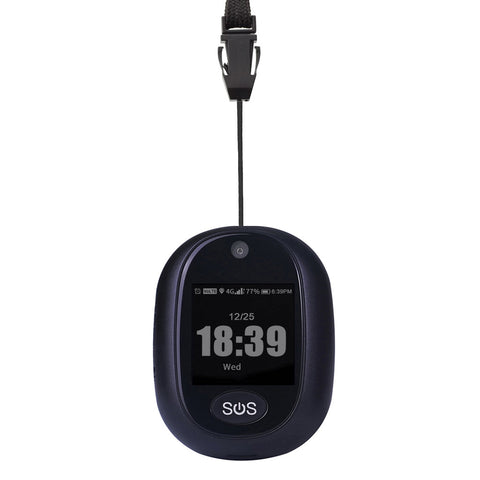
Please follow the link below to download the software for your One button emergency phone.
For Android - anytracking app
For iOS (Apple) - anytracking app
Log into the App with the 10 digit ID number on the back of the tracker.
The default password is 123456. Please change this default password to something memorable. Make sure you create a secure password, for example by combining three random words.
