


Order Code: PDH
Use wireless sensors in your existing wired call system. This adapter receives alerts from a wireless sensor and plugs straight into your existing call system.
Wireless Relay Adapter
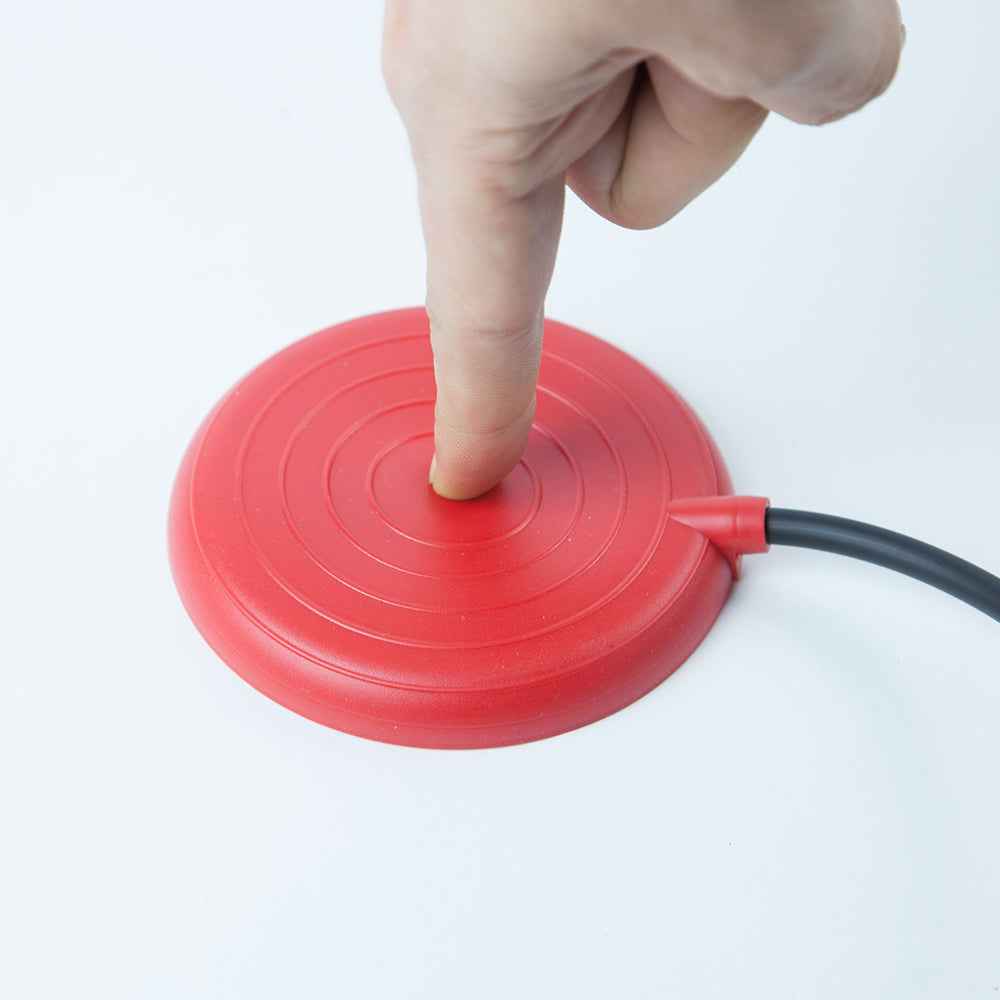
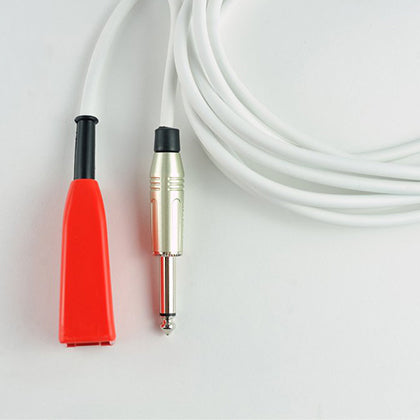
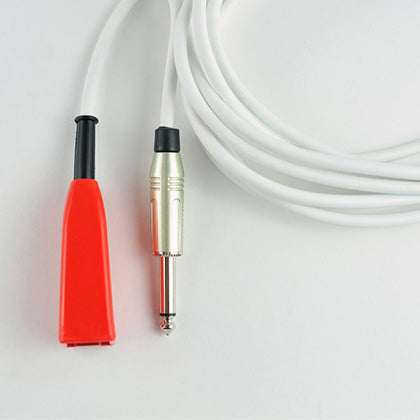
A simple plug-in device that allows you to use wireless sensors with your existing wired call system, plugging straight into an available call point and alerting your call system like a call bell would. This avoids trailing wires around your sensors.

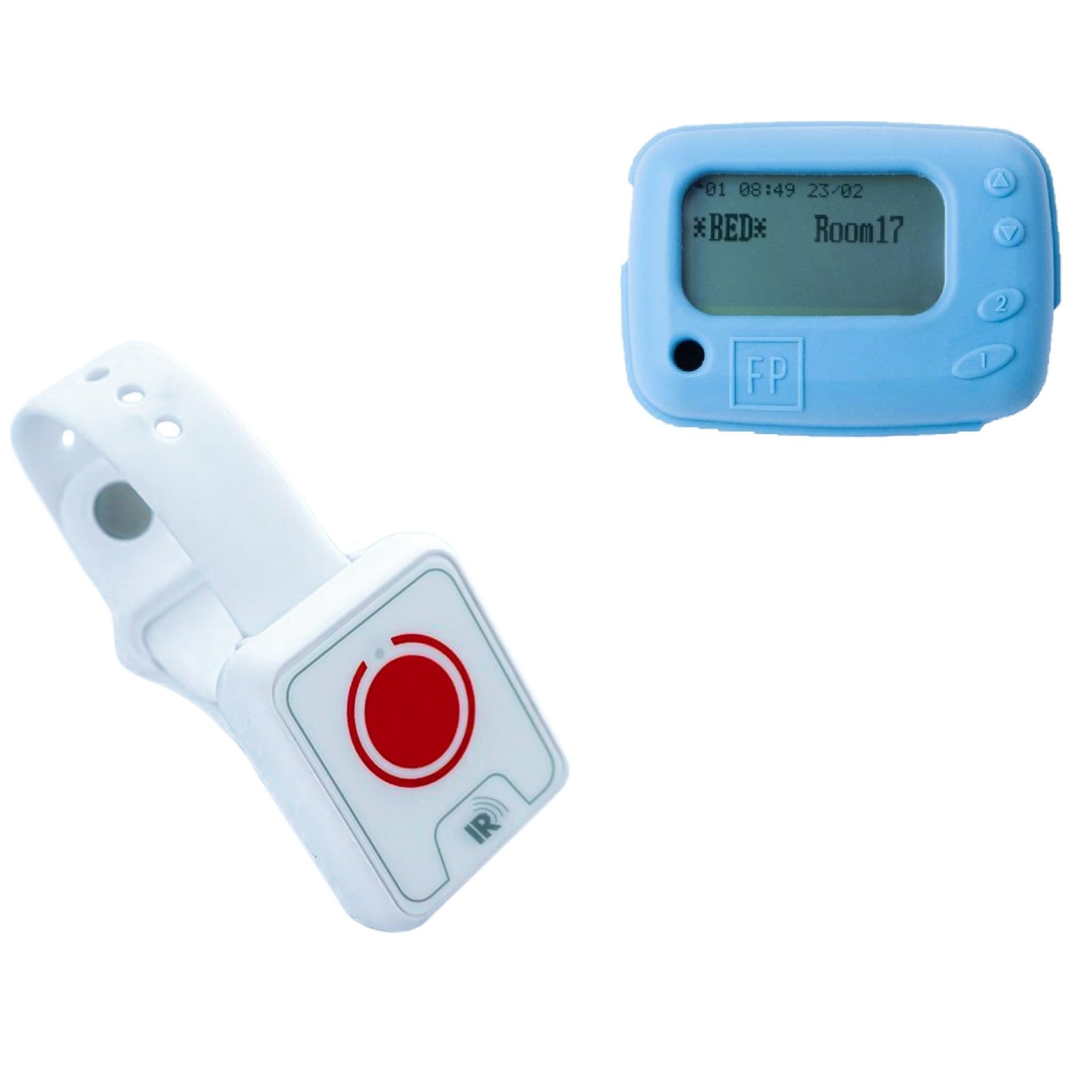
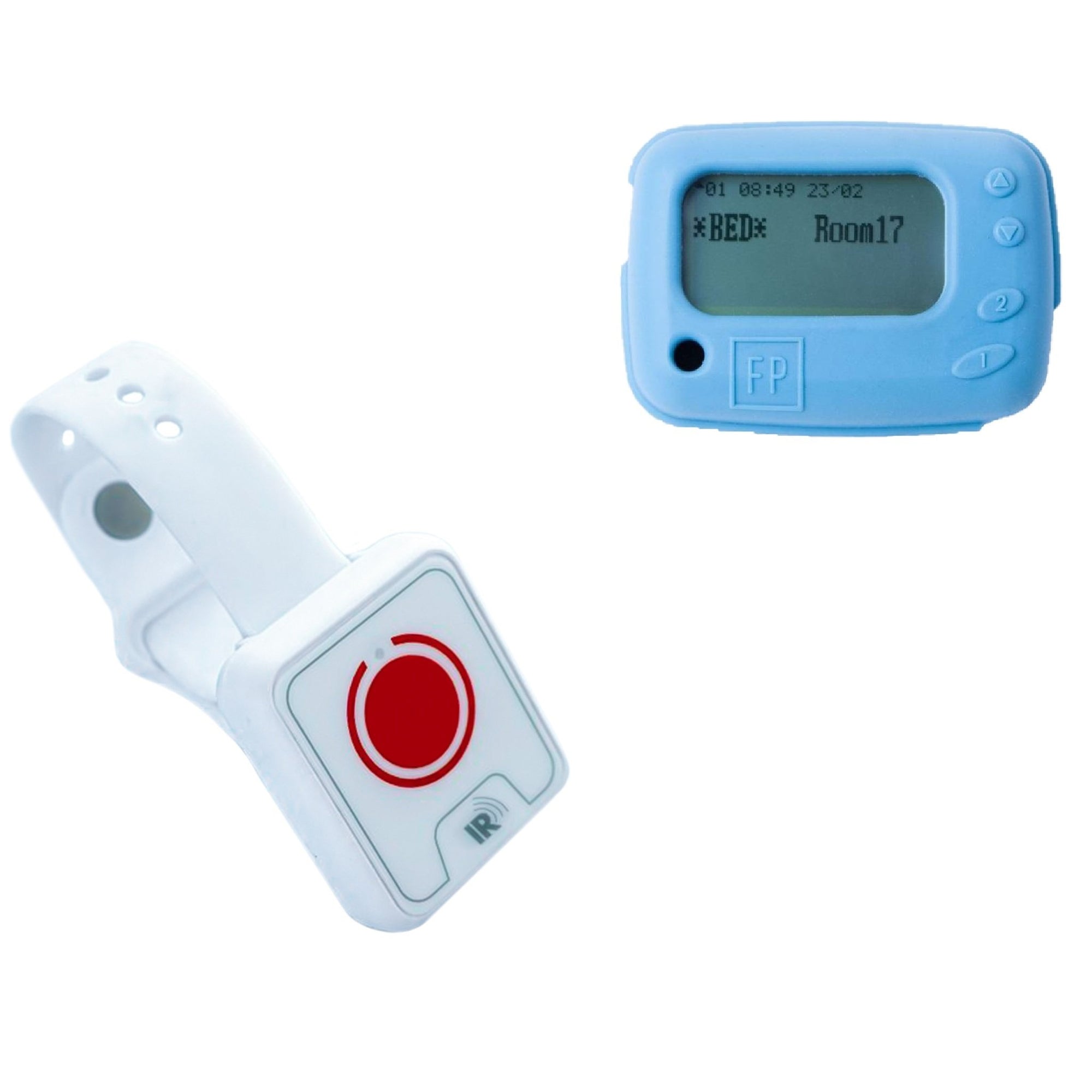
Used With A Falls Watch - The Wireless Relay can plug into your existing call point to receive data from a wireless sensor like a falls watch. It then receives the alert and triggers the call point in the room, even if the individual wearing the watch is not in their room at the time.

MAINS POWERED -The Wireless Relay Adapter plugs straight into any mains socket making installation very easy and you don't have to worry about battery life. The unit runs from a low powered mains usb adapter that's attached to the back. The cable neatly loops over and plugs in.

MPN (PDH) WIFI Gateway HUB, acting as an all-in-one wireless Relay, SMART Cloud-Logger, and Phone SMS/WhatsApp/Voice Alerter

FP wireless HUB Connectivity and Integration
Key Features
• Multi-Device Sensor Integration
Multiple FP sensors can connect to a single HUB, allowing different monitoring devices to operate simultaneously within the same system. This integrated architecture enables centralized monitoring of patient activity and safety events from various sensor types without requiring separate receivers.
• Nurse Call System Integration
Upon receiving an alert from any connected FP sensor, the HUB can transmit the alarm directly to a “traditional nurse call system” without internet via a wired jack interface. This ensures compatibility with existing infrastructure and allows alerts to appear alongside other nurse call events already used within the care facility.
• Cloud Connectivity
The HUB can forward sensor events to a secure cloud platform. Once uploaded, the data can be distributed to authorised devices connected via the internet, enabling remote monitoring and alert delivery beyond the local nurse call system.
• Multi-Channel Alert Delivery
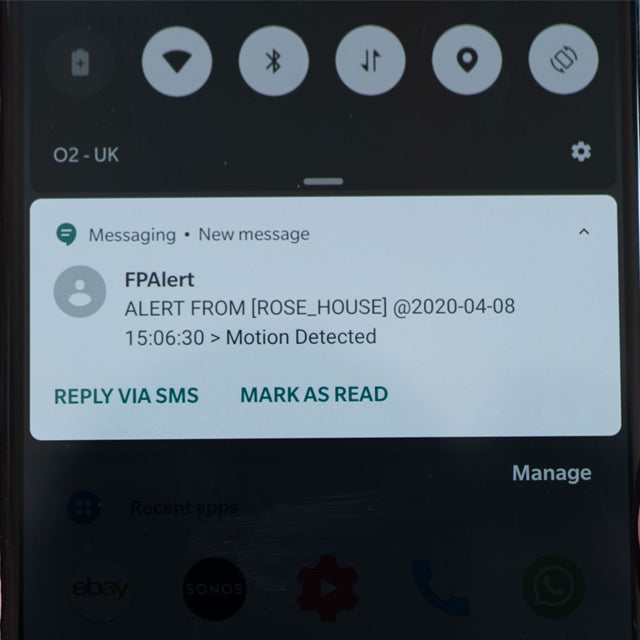
Alerts generated by FP sensors can be delivered through several communication channels to ensure rapid notification of caregivers. These include:
* SMS text messages
* WhatsApp notifications
* AI Live voice calls
* Voicemail alerts
* Pager Alerts
This flexible notification system allows organisations to configure how alerts reach staff based on operational needs.
• Mobile and Desktop Monitoring
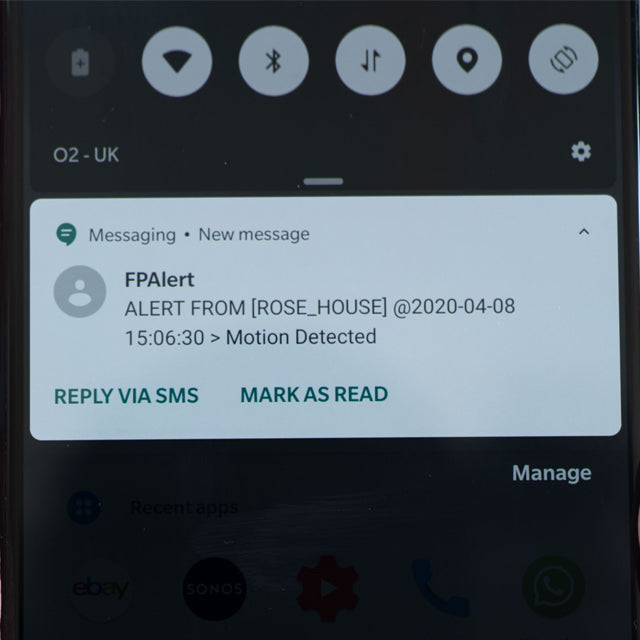
Care staff can receive notifications on **Wi-Fi connected devices**, including smartphones, tablets, and desktop computers. This ensures alerts can be received whether staff are on-site, at a nurse station, or monitoring remotely.
• Remote Configuration via FP Portal
The HUB can be remotely configured and managed through the FP Portal. This web-based platform allows administrators to adjust device settings, manage sensor connections, configure notification methods, and monitor system status without needing physical access to the HUB.
• Scalable System Architecture
The HUB architecture supports scalable deployments. Additional sensors and users can be integrated into the system as monitoring requirements grow, making the solution suitable for small installations as well as larger multi-room or multi-building facilities.
• Long-Range Sensor Connectivity
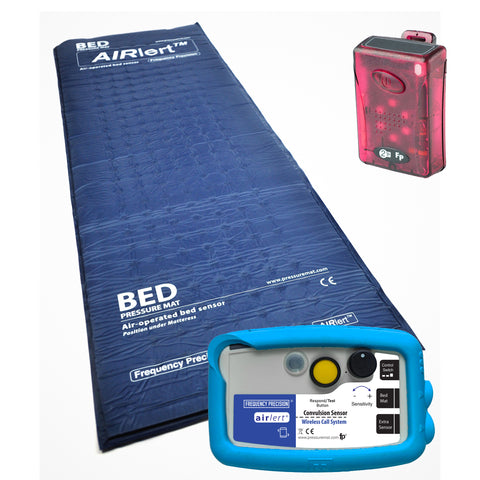
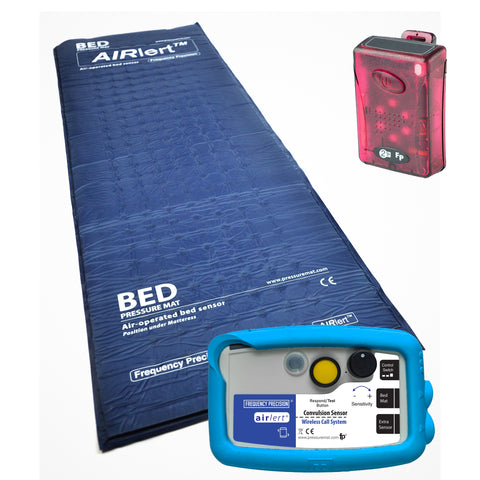
The HUB receives wireless transmissions from FP sensor devices such as Bed Leave sensors, Convulsion monitors, Falls Watch sensors, and Occupancy detectors. These sensors communicate with the HUB using a reliable wireless protocol with an approximate **300-meter line-of-sight range**, allowing coverage across large care environments such as wards, assisted living facilities, and residential homes
Setting up instructions
The (PDH) gateway "HUB" can be set up as a Wi-Fi gateway using its Wi-Fi captive portal with a smartphone or a computer.
There is also a USB connector that can be connected to a PC using our free application to change its settings on whether it can receive messages from just some of our sensors in range or all available sensors, this can be useful if using it to trigger a nurse call point from some of the transmitting sensors and ignoring others or if only needing to be alerted to certain types of alerts, such as fall detections or message alerts from our sensors with low batteries that need to be serviced.
(Free PC HUB application for changing settings via USB) FP_Hub Programmer_gui-v2
Viewing, linking and managing HUBs connected to our Cloud-based PortalAIRLERT
Record logs of the messages from your HUB can be checked at the Airlert Portal using the link below:
https://airlert.co.uk/
For using the Remote alert messaging options with the HUB Gateway:
Non-smartphone devices, landlines, or telecare services can also be supported via AI voice calls or SMS text message delivery when the HUB receives paging messages from any of the sensors within range or predefined messages only. The Hub is also supported by popular instant messaging platforms on smartphones, such as WhatsApp.
WhatsApp runs on SMART Phones using Android or iPhone OS, and you can also use WhatsApp-Desktop on multiple operating systems or WhatsApp-Web on multiple web browsers, so our HUB can be used in a very versatile way, with the capability to be used simultaneously in multiple ways.
All settings related to message forwarding (i.e., adding mobiles and phone numbers) as well as logging can be controlled remotely by the user via our web portal at https://airlert.co.uk/ or by instructing a member of our customer support team.
Connecting WhatsApp to the HUB for Mobiles and Desktops
Where to Download Mobile Apps
How to Set Up for Desktop
To link your account (and ensure your AIRLERT Portal alerts appear on your screen):
You can useWhatsApp Desktop as a standalone application for Windows or macOS, or you can send and receive messages directly in your browser usingWhatsApp Web. Both versions allow you to view your chat history and receive real-time notifications on your computer.
Where to Access Them